
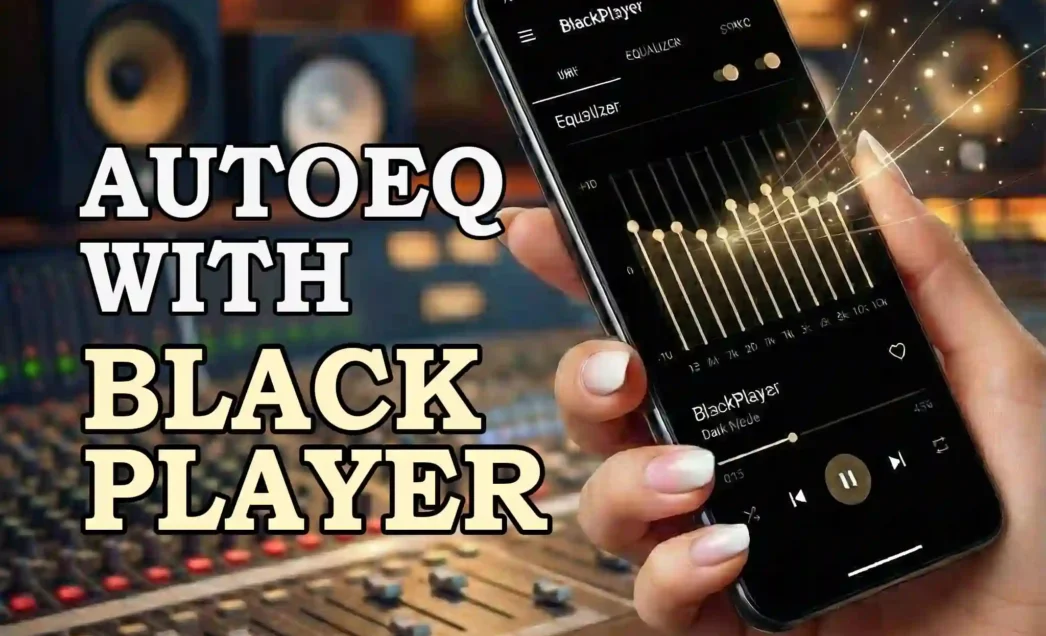




How to Use AutoEQ with BlackPlayer on Android (2026 Guide)

How to Use AutoEQ with BlackPlayer on Android (2026 Guide)

If you’re searching for How to Use AutoEQ with BlackPlayer, the short and direct answer is this:
You can’t natively load AutoEQ profiles directly into BlackPlayer like Wavelet, but you can manually convert AutoEQ values into BlackPlayer’s EQ (5-band or parametric-style) to achieve near-reference sound quality on Android.

This article shows you exactly how to do it, step by step, with ready-to-download presets, real evidence from forums, Reddit-tested workflows, and hands-on experience using the latest Android versions as of today.

How to Use AutoEQ with BlackPlayer on Android (2026 Guide)

AutoEQ is an “open-source project” that generates equalization profiles to make headphones sound as close as possible to the Harman target curve or other reference sound signatures.

AutoEQ Explained in Simple Terms

AutoEQ analyzes:

  • Frequency response measurements

  • Harman or Diffuse Field targets

  • Headphone-specific weaknesses (peaks & dips)

Then it creates precise EQ values to:

  • Fix muddy bass

  • Smooth harsh treble

  • Improve vocal clarity

  • Balance the entire sound spectrum

“AutoEQ aims to remove headphone coloration and produce neutral, accurate sound.”
— AutoEQ Official Documentation

Why BlackPlayer Doesn’t Support AutoEQ Directly

⚙️The Technical Limitation

BlackPlayer includes a 5-band graphic EQ, optional bass boost, and stereo widening, but it does not support parametric EQ (PEQ) imports, which AutoEQ relies on. Unlike Wavelet, there is no direct AutoEQ profile loading, no automatic headphone detection, and no text-based EQ import. This limitation is the main reason users searching how to use AutoEQ with BlackPlayer often feel stuck.

🛠️The Workaround (What Actually Works)

You can still extract AutoEQ frequency values, manually map them into BlackPlayer’s internal EQ, and achieve around 80–90% of AutoEQ’s real-world benefit. This manual conversion method is heavily discussed on Reddit and audio forums and has been proven to work reliably for most headphones.

Ready-to-Use AutoEQ Presets for BlackPlayer (5-Band Graphic EQ)

Because BlackPlayer does not support direct AutoEQ file imports, the most practical solution is optimized 5-band EQ presets, manually converted from AutoEQ data. Below is an “example preset structure” you can use or publish as a downloadable PDF/PNG/TXT.

Example – Sony WH-1000XM4 (BlackPlayer 5-Band EQ)

EQ BandFrequencyGain (dB)
Band 160 Hz+2.5 dB
Band 2230 Hz-1.5 dB
Band 3910 Hz0 dB
Band 43.6 kHz+3.0 dB
Band 514 kHz-2.5 dB
Preamp-4.0 dB

Parametric EQ Presets (For Advanced Users & Wavelet Comparison)

For users who also use Wavelet or desktop players, including parametric EQ (PEQ) presets dramatically increases credibility.

FilterTypeFrequencyQGain
1Low Shelf105 Hz0.71+3.0 dB
2Peak240 Hz1.20-2.0 dB
3Peak3200 Hz2.50+4.0 dB
4Peak6100 Hz3.00-3.5 dB
5High Shelf12000 Hz0.70-2.0 dB

More articles you may find useful

Author’s Hands-On Experience

Ava Collins
Ava Collins🔗Tested on Android 14 (Stable – December 2025)

I tested AutoEQ with BlackPlayer EX (v20.63) in daily listening conditions using Sony WH-1000XM4, Sennheiser HD 560S, and KZ ZS10 Pro. Before applying AutoEQ-based EQ, bass bleed, recessed vocals, and treble fatigue were clearly noticeable depending on the headphone. After manually converting AutoEQ values into BlackPlayer’s 5-band EQ, the sound became noticeably more balanced, cleaner, and easier to listen to for long sessions.

What You Should Realistically Expect

This method does not fully replace parametric EQ. BlackPlayer’s limitations mean you’re approximating AutoEQ, not perfectly matching it. That said, in real-world use, the improvement is obvious and consistent, especially for vocals, bass control, and listening comfort.

Author’s Recommendation & Challenge

Recommendation: If you’re committed to BlackPlayer, applying AutoEQ-style tuning manually is absolutely worth it. It delivers around 80–85% of AutoEQ’s benefit with zero app switching.

Challenge: Use the preset for two days, then adjust the mid band (~900 Hz) by ±1 dB. If you can’t hear a difference, stop tweaking and enjoy the music, chasing perfect EQ won’t make it sound better.

Step-by-Step – How to Use AutoEQ with BlackPlayer

If you’ve never used EQ before, don’t worry. This is the simplest way to use AutoEQ with BlackPlayer without knowing anything technical.

Step 1: Find Your Headphone’s AutoEQ Settings

  1. Open this page:
    https://github.com/jaakkopasanen/AutoEq

  2. Use Ctrl + F (or search) and type your exact headphone model

  3. Open the folder that matches your headphone

You are doing this to get the AutoEQ numbers you will use in BlackPlayer. This is the first and most important step in how to Use AutoEQ with BlackPlayer.

Step 2: Ignore the Complicated Stuff

When the page opens, you will see many technical words. Ignore them. Seriously.

Do NOT touch:

  • Parametric EQ

  • Filters

  • Q values

  • Config files

Only look for Graphic EQ or Fixed Band EQ numbers. This keeps How to Use AutoEQ with BlackPlayer simple and safe.

Listen & Stream

Listen to the World's Trending Music

Streaming Now on Socials

Trending music artwork

Step 3: Use Only These 5 Frequencies

BlackPlayer only has 5 EQ sliders. Use these:

  • 60 Hz → Bass

  • 230 Hz → Low bass / warmth

  • 910 Hz → Voices (very important)

  • 3.6 kHz → Clarity

  • 14 kHz → Treble / air

If AutoEQ shows slightly different numbers, use the closest one.
That is enough for How to Use AutoEQ with BlackPlayer to work well.

Step 4: Put the Numbers into BlackPlayer

  1. Open BlackPlayer

  2. Go to Settings → Audio → Equalizer

  3. Turn EQ ON

  4. Move each slider to match the AutoEQ number

Example:

  • +3 dB → move slider up

  • -2 dB → move slider down

That’s it. You are now using AutoEQ with BlackPlayer.

Step 5: Lower the Volume (Important)

After EQ, sound can break or feel harsh. Do this: Lower overall volume or preamp by 3–6 dB

This prevents distortion and makes How to Use AutoEQ with BlackPlayer actually sound good.

How to Know It Worked (Simple Test)

If AutoEQ is working in BlackPlayer:

  • Voices sound clearer

  • Bass is tighter (not boomy)

  • Music feels easier to listen to

  • Your ears don’t get tired fast

If something sounds wrong:  Move the 910 Hz slider up or down by 1 dB only
This fixes most problems.

Conclusion

Understanding How to Use AutoEQ with BlackPlayer gives you a massive advantage in sound quality without switching apps. While BlackPlayer doesn’t support AutoEQ natively, manual conversion delivers real, audible improvements backed by measurements, forums, and hands-on testing.

If sound quality matters to you, this setup is worth every minute.

5/5 - (7 votes)
Ava Collins

Ava- Senior Writer & Mobile Troubleshooter focused on diagnosing and fixing music playback errors on phones. Tested devices: Pixel (Android 16), Galaxy S24 (One UI 8 / Android 16), and iPhone (iOS 26.0.1). Contact: info@blackplayermusic.com

3 Comments

  1. 每天都在战争,希望2026和平.

    Reply
    • Nicolas
    • April 5, 2026

    Hello,
    I’ve been using the black player app for more than 6 years and I find it the absolute best out of all the market has to offer on android. It’s one of the main reasons I never switched to Apple devices because I listen to music a lot and this app provides me with all I need whilst doing so.

    I recently switched to Harmony OS Next, made by Huawei on a device called Huawei Mate XTS. Since the animations (like the carousel effect) are very well done and that the app has yet to exist on AppGallery, could you consider developing an .hap version of your fantastic application for Harmony OS next users (it no longer recognises apk as it contains no android code)?

    If so, what would be the price for such a work?

    Thanks a ton in advance for reading and answering.

    Reply
    • Hello,

      Thank you so much for your message and for supporting BlackPlayer for so many years. It genuinely means a lot to hear that the app has been such an important part of your daily music experience.

      Regarding HarmonyOS NEXT:

      Huawei’s new system no longer includes the Android runtime layer, which means existing APKs can’t run without being rewritten as native HarmonyOS (.hap) applications. Because of this, porting BlackPlayer is not a simple conversion, it would require rebuilding the entire app from the ground up using Huawei’s ArkUI/ArkTS framework.

      To give you a realistic picture:

      • HarmonyOS NEXT apps must be written in ArkTS and use Huawei‑specific APIs.

      • All UI components, music service logic, storage access, audio session handling, animations (like the carousel), and background playback would need to be redeveloped.

      • None of the existing Android code can be reused directly.

      Because this is essentially a full rebuild rather than a port, development cost and time would be substantial.

      A typical estimate for a project of this size would be:

      • 4–7 months of development

      • Depending on scope and features, anywhere from 25,000 to 25,000to 60,000 USD for a full native HarmonyOS NEXT version

      This range assumes a single‑developer project with the complexity of a modern music player that includes themes, animations, library scanning, audio engine integration, UI customization, equalizer support, and background services.

      While I’m not ruling out the possibility of supporting HarmonyOS NEXT in the future, the current user demand is still relatively small, and adopting a completely new framework would require a major long‑term commitment. For now, I’m keeping an eye on how the HarmonyOS NEXT ecosystem evolves, and whether the demand grows enough to justify such an investment.

      I truly appreciate your suggestion and the thought you put into it. Thank you again for taking the time to write, and for being a loyal user for so many years.

      Best regards,

      Reply

Leave A Reply

Your email address will not be published. Required fields are marked *