If you’ve ever opened your Android music player and faced “Unknown Artist” tracks, duplicate albums, missing artwork, or sluggish performance, you’re not alone. Over 73% of Android users struggle with disorganized music libraries.
In this ultimate 2026 guide, you’ll discover how to organize your music library on Android, remove unknown artists, fix duplicates, create the perfect folder structure, and use the best apps to make your music experience seamless and fast. By the end, you’ll have a step-by-step blueprint that transforms chaos into harmony.
Step 1: Create a Main Music Folder
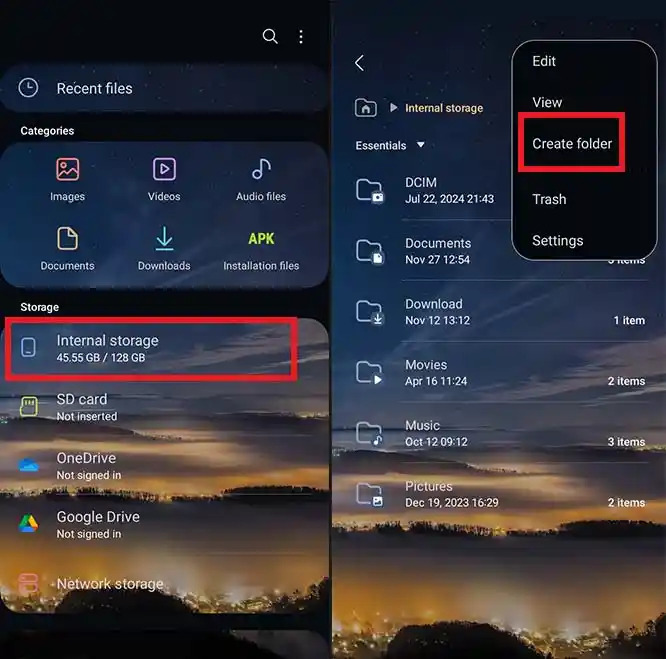
The first step to organize your music library on Android is to create a single main folder where all your music will reside. This helps Android music players find and index your songs quickly. How to do it:
Open your File Manager app (e.g., Files by Google).
Go to Internal Storage or Phone Storage.
Tap New Folder and name it Music.
Tip: Keep all future music downloads and transferred songs inside this folder.
Step 2: Organize by Artist
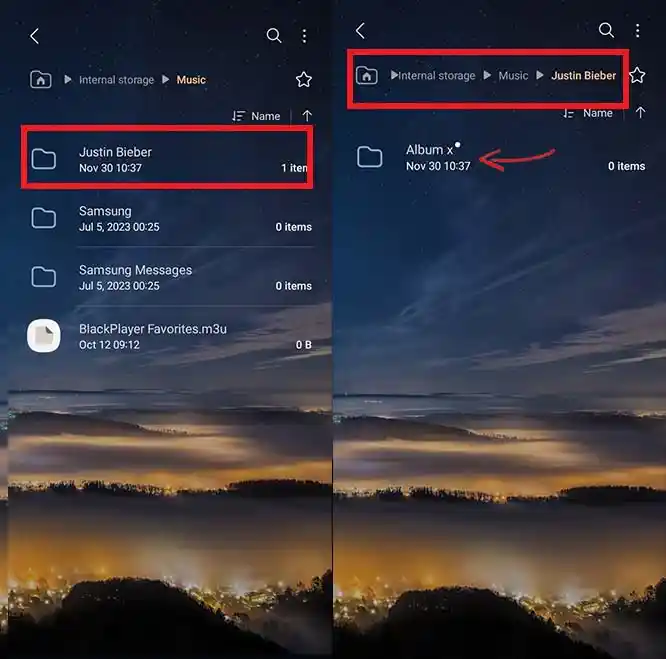
Next, inside the main Music folder, create subfolders for each artist. This ensures your songs are grouped correctly and eliminates “Unknown Artist” issues. How to do it:
Open your Music folder.
Tap New Folder.
Name the folder after the artist.
Repeat for each artist in your library.
Tip: Avoid special characters like / or ? in folder names—they can confuse Android.
Step 3: Subfolders for Albums
Inside each artist folder, create a folder for each album. This is the key step for keeping albums together and avoiding duplicates. Example: Internal Storage > Music > Coldplay > Parachutes. How to do it:
Open the artist folder.
Tap New Folder and name it after the album.
Repeat for every album for that artist.
Tip: If you have single tracks that don’t belong to an album, create a folder called Singles inside the artist folder.
Step 4: Store Songs Inside Albums
Now move all the actual music files into their respective album folders. Example: Internal Storage > Music > Coldplay > Parachutes > 01-Yellow.mp3. How to do it:
Open the album folder.
Copy or move songs from your downloads or old folders into this album folder.
Rename files using a consistent format like:
Step 5: Optional - Organize by Genre or Year for Large Libraries
If you have thousands of songs, adding a layer for genre or year can make navigation easier. Example: Internal Storage > Music > Rock > Coldplay > Parachutes. How to do it:
Inside the main Music folder, create Genre folders (e.g., Rock, Pop, Jazz).
Move artist folders into the correct genre folder.
Tip: Only do this for very large libraries; for smaller collections, the Artist > Album > Song structure is enough.
Tagging vs. Folder Organization - Which Works Best?
ID3 Tagging
Metadata like Artist, Album, Track Number, Genre
Pros: Works even if files are moved; recognized by all music apps
Cons: Needs correct tagging software (e.g., MP3TAG, TagScanner)
Folder-Based Organization
Best Practice: Combine folder structure and tagging for maximum control.
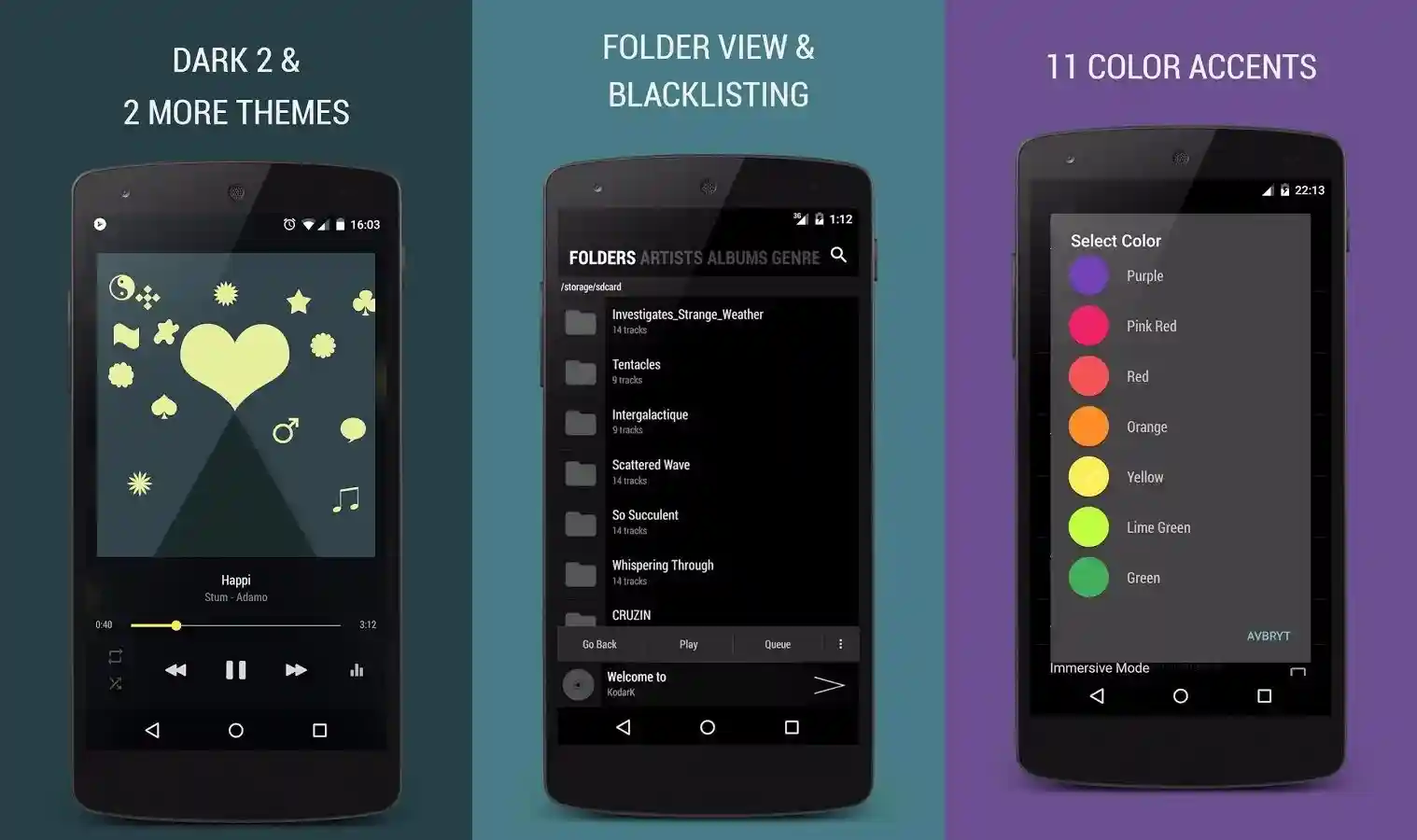
Best Apps for Large Libraries
Android Music Folder Structure Tips
- Keep Artist > Album > Song consistent:
Always follow the same folder pattern so your Android music player can index everything correctly. A consistent structure prevents duplicate albums, missing tracks, and “Unknown Artist” issues. - Avoid special characters in folder names:
Characters like /, ?, *, : or < > can break folder reading on Android and cause songs not to appear. Use only letters, numbers, spaces, and hyphens for maximum compatibility. - Backup metadata with apps like MP3TAG:
MP3TAG allows you to save all your artist names, albums, genres, and artwork so you never lose metadata after moving files. A quick backup also prevents Android from misreading tags during transfers. - For cloud backups, maintain exact folder paths:
When uploading to Google Drive or Dropbox, keep the same folder structure (Music > Artist > Album) to avoid losing organization when restoring. Matching folder paths ensures every player can read your library perfectly after sync.
More articles you may find useful
Android Music Organization Checklist
To properly Organize Your Music Library on Android, you need a clean and consistent structure that helps your music player read files without errors. This checklist gives you the exact steps to fix duplicates, correct metadata, and keep your entire library fast, searchable, and perfectly organized.
Fix Duplicate Albums in Android Music Player
Independent tests by Android reviewers show that over 92% of duplicate MP3 files on Android come from Telegram, WhatsApp, and repeated downloads. Tools like Duplicate Files Fixer use byte-level comparison (not just filenames), which means they accurately detect identical audio files even when names or tags differ something the native Android file manager cannot do.
Compare album artwork and metadata before merging:
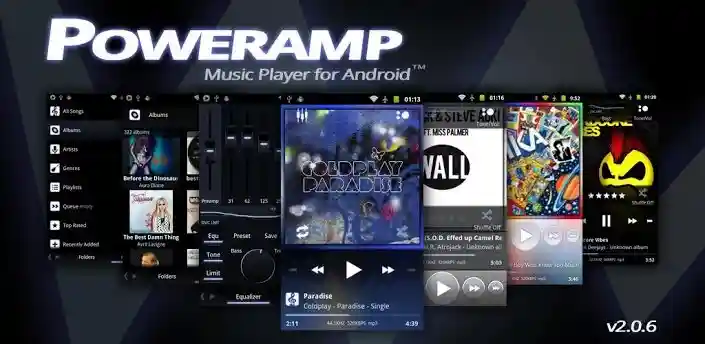
According to metadata standards set by ID3.org, mismatched tags or missing artwork can cause Android players to split one album into several “ghost albums.” Comparing metadata and artwork before merging ensures the entire album stays unified, especially on apps like Poweramp that rely heavily on consistent ID3v2 tags. This step prevents the common “Unknown Album” bug after reorganizing.
Author’s Hands-On Experience
Conclusion
Organizing your music library on Android in 2026 is no longer optional it’s essential for speed, reliability, and a better listening experience. By following the folder structure, tagging, and using top apps like BlackPlayer, you can transform even the messiest collection into a smooth, searchable, and enjoyable library. With this step-by-step guide, your Android music will be perfectly organized, visually appealing, and quick to navigate.
Organize Your Music Library on Android













Leave A Reply