


Updated: 29 July 2026 | Author: Editorial Team Author Profile
If Poweramp is not working correctly on Android, the issue is usually related to app permissions, storage access, audio output settings, Android system restrictions, or compatibility changes after updates. Problems such as crashes, missing music files, no sound, or playback interruptions can often be fixed by checking system settings and Poweramp configuration options.
In this complete Poweramp troubleshooting guide, you’ll learn how to fix common issues step by step, including audio playback problems, library scanning errors, permission settings, Android battery restrictions, and compatibility issues on newer Android versions. These solutions are based on official Poweramp documentation and Android support guidelines.
Table of Contents
- 1. Poweramp Not Working: What’s Really Causing These Crashes?
- 2. Poweramp Fixed: Getting Your Music Back on Track
- 2.1. Section 1: The Disappearing Library: Fixing File Access & Scanning Issues
- 2.2. Section 2: Solving Playback Problems: From Muted Audio to Random Stoppages
- 2.3. Section 3: Resolving Widget & Lock Screen Problems
- 2.4. Section 4: Troubleshooting Bluetooth Connectivity & Audio Quality
- 2.5. Section 5: Equalizer and Sound Effects Conflicts
- 2.6. More articles you may find useful
- 2.7. Why BlackPlayer Album Art Missing? Reason and 3 Solutions
- 2.8. How to Show Lyrics in BlackPlayer Complete Guide 2026
- 2.9. BlackPlayer Failed to Load Track Error in 2026 | How to Fix?
- 2.10. Section 6: The Ultimate Troubleshooting Checklist & Actionable Fixes
- 3. Conclusion: A Return to the Music
Poweramp Not Working: What’s Really Causing These Crashes?
Before fixing Poweramp, let’s look at what’s actually breaking it.
In most cases, the problem isn’t Poweramp itself, it’s Android. Since Android 12, major system changes have caused many music apps to struggle with permissions, background limits, and file access.
1. Stricter File Access (Android 13+)
Google’s new privacy rules restrict how apps reach your storage. That’s why Poweramp might suddenly “forget” your library or miss new songs after an update. Its older Legacy File Access mode simply isn’t supported anymore.
2. Aggressive Battery Management
Newer Android versions kill background apps faster to save power. That means your Poweramp might pause, stop, or even vanish mid-song. The fix? Disable “Manage App If Unused” Poweramp will remind you when needed.
3. System Audio Library Bugs
Some playback issues come from Google’s own Android Audio Library, not Poweramp. This causes “silent” playback a bug also seen in other players like BlackPlayer.
In short: these aren’t random bugs. Android keeps changing, and Poweramp needs a few quick adjustments to keep up. Once you understand that, the fixes make perfect sense.
Poweramp Fixed: Getting Your Music Back on Track
After understanding what causes the crashes, it’s time to bring Poweramp back to life. Whether your playback keeps stopping, songs won’t load, or the app simply crashes the good news is, most of these issues have clear solutions.
In the next section, we’ve listed the most common Poweramp errors and exactly how to fix each one step-by-step. Follow along, and your player will be running smoother than ever in just a few minutes.
Section 1: The Disappearing Library: Fixing File Access & Scanning Issues
One of the most common and frustrating problems reported by Poweramp users is that their entire music library suddenly disappears after an Android update. This is almost always a result of Android’s stricter file access protocols.
The Problem: You have all your music files on your device or SD card, but Poweramp’s library shows up as empty. The app might have lost its permission to read your music folders, or the old method it used is no longer supported by the OS.
The Solution: The core fix is to manually guide Poweramp to your music files and grant it the necessary permissions.
- Step 1: Disable “Legacy File Access” (Where Applicable) As of recent updates, the “Legacy File Access” option is not supported on Android 13 and newer for the Google Play edition. For a smooth experience, ensure this option is not enabled, or simply use the “Music Folders” feature, which has been the developer’s recommended method for years.
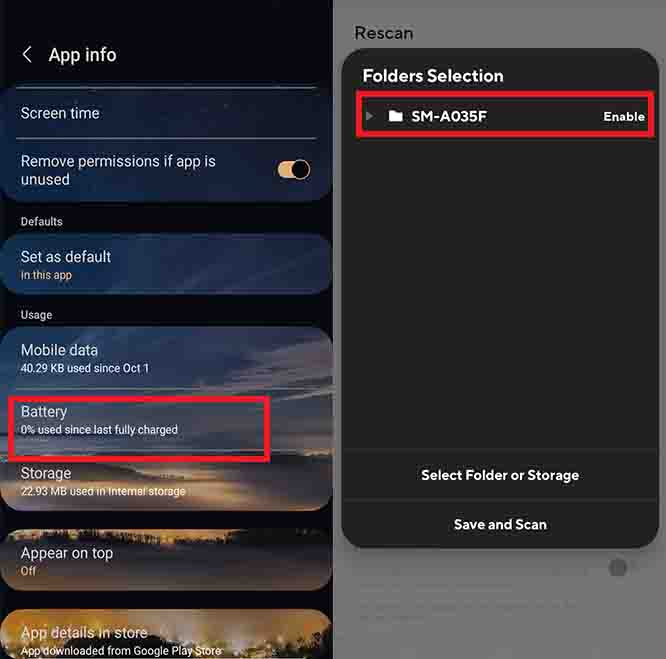
- Step 2: Manually Add Your Music Folders This is the most critical step. Instead of relying on a broad, system-wide scan, you must explicitly tell Poweramp where your music is located.
- Go to Poweramp Settings.
- Navigate to Library > Music Folders.
- Tap on the small arrow next to your internal storage or SD card.
- Manually select and check the specific folders where your music files are stored (e.g., Music, Download, Audiobooks).
- Once selected, the app will rescan your library, and your tracks should reappear.
- Troubleshooting Note: Avoid adding the root directory of your storage. This can lead to a long scanning process and potential instability. It is always better to select specific subfolders.
Section 2: Solving Playback Problems: From Muted Audio to Random Stoppages
Another major cluster of issues revolves around playback itself: music that cuts out, stops unexpectedly, or plays without sound. These are often complex problems with multiple potential causes, but they can be systematically addressed.
The Problem: You start a song, but there’s no sound. Or, a song starts playing correctly, but subsequent songs in the queue are completely silent. In other cases, the app stops playing music on its own, especially when you switch to another app.
The Solution: These issues can be traced back to Android’s audio processing and app management.
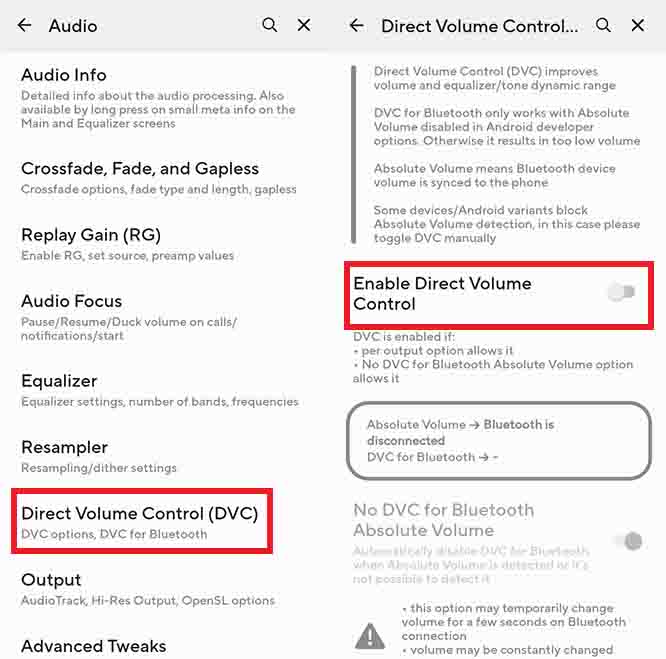
- Fix 1: Adjusting the DVC Setting (Direct Volume Control) The DVC feature in Poweramp is a powerful tool for audiophiles, but it can sometimes clash with a device’s native audio drivers, leading to crashes and sound issues . below picture
- Go to Poweramp Settings > Audio > Output.
- Locate the DVC (Direct Volume Control) option.
- Try toggling this setting off to see if it resolves the issue. Some users have reported that disabling DVC has completely fixed their sound problems on Android 14.
- Fix 2: Managing App Battery Usage Newer Android versions have an “Unused app” or “Manage app if unused” feature that can put apps to sleep. This can cause music playback to stop when the app is in the background. Poweramp may even suggest disabling this feature if it detects it.
- Go to your phone’s System Settings > Apps > Poweramp > Battery.
- Change the setting from “Optimized” or “Intelligent control” to “Unrestricted” or “Don’t optimize”. This will ensure the system doesn’t kill Poweramp to save battery.
- Fix 3: Checking Crossfade and Gapless Playback While these features are hallmarks of a premium music player, they can sometimes cause problems. Reports from BlackPlayer users indicate that “gapless playback” can be a culprit for songs playing without sound. Poweramp users have also reported similar bugs when both
crossfade and sound effects are enabled simultaneously.
- Navigate to Poweramp Settings > Audio > Crossfade.
- Disable Crossfade and Gapless Playback and test if the issue is resolved. If so, you can re-enable one at a time to determine which feature is causing the conflict.
Section 3: Resolving Widget & Lock Screen Problems
Widgets offer a convenient way to control music playback without opening the app, but they can be a source of frustration when they stop working or disappear. This issue became particularly prevalent after the release of Android 12 and 13.
The Problem: After a system update, your Poweramp widget disappears from the home screen, stops updating the song information, or its buttons become unresponsive.
The Solution: This is often a system-level bug, but there are a few simple troubleshooting steps that can restore the widget’s functionality.
- Fix 1: Relocate the App to Internal Storage If the Poweramp app is installed on an SD card, it can sometimes lead to stability issues, including widgets disappearing. The most reliable fix is to move the app to your phone’s internal storage.
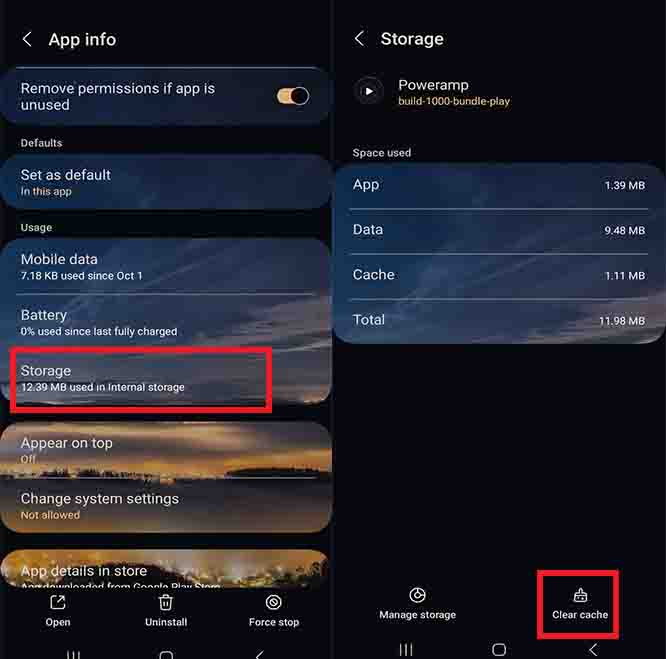
- Fix 2: Clear the App’s Cache and Restart A corrupted cache can cause many strange behaviors, including unresponsive widgets.
- Go to your phone’s System Settings > Apps > Poweramp > Storage.
- Tap Clear Cache.
- Restart your phone. In many cases, this simple step can restore the widget.
- Fix 3: Re-add the Widget If the widget is still not working, a fresh start can help.
- Remove the existing Poweramp widget from your home screen.
- Go to the widget menu and re-add a new Poweramp widget. This forces the system to reinitialize the widget’s connection to the app.
Section 4: Troubleshooting Bluetooth Connectivity & Audio Quality
Bluetooth is the most popular way to listen to music wirelessly, but Android updates can sometimes disrupt this seamless experience. Issues can range from sudden disconnections to noticeable drops in audio quality.
The Problem: Your phone connects to a Bluetooth device (headphones, car audio), but the audio either cuts out intermittently, has a “pinging” sound, or the overall volume is low.
The Solution: These issues are often tied to how Android manages audio codecs and volume controls with Bluetooth devices.
- Fix 1: Disable Absolute Volume in Developer Options The “Absolute Volume” feature keeps the volume of your phone and your Bluetooth device in sync. While convenient, it can cause conflicts that result in low volume or other sound issues. Disabling it separates the two volume controls, giving you more granular control and potentially fixing the bug.
- Go to System Settings > About Phone and tap the Build Number seven times to enable Developer Options.
- Go to System > Developer Options.
- Find and enable the Disable absolute volume toggle.
- Reconnect your Bluetooth device.
- Fix 2: Adjust Bluetooth Codec Android 14 may prioritize or default to a codec that is not optimal for your specific device, leading to a drop in audio quality. For example, if the system defaults to the basic SBC codec instead of a higher-quality one like aptX or LDAC, you may notice a significant loss in clarity.
- In Developer Options, find the Bluetooth Audio Codec setting.
- Try changing this setting from the default to another supported codec for your device.
- Fix 3: Clear Paired Devices In some cases, corrupted data from a previous pairing can cause new connections to fail or behave erratically. Clearing the device’s memory and re-pairing can resolve this.
- Go to System Settings > Connected devices.
- Tap on the gear icon next to your saved Bluetooth device and select Forget.
- On your car or speaker, clear your phone from its memory as well (consult the device manual for this step).
- Re-pair the devices from scratch.
Section 5: Equalizer and Sound Effects Conflicts
Poweramp’s powerful equalizer and sound effects are a major selling point, but they can sometimes interfere with other audio apps or system settings, leading to unexpected behavior.
The Problem: Poweramp’s equalizer settings stop working after a song changes, or the volume spikes and then drops, especially when using other apps like Spotify or YouTube. In other cases, the equalizer might simply turn off by itself.
The Solution: The key is to manage how Poweramp’s audio effects interact with other apps and the system’s own audio engine.
- Fix 1: Disable Competing Equalizers If you have other sound-enhancing apps (e.g., system equalizers, Dolby Atmos) running, they can conflict with Poweramp’s built-in equalizer.
- Open your phone’s system settings and find the sound/equalizer settings.
- Disable any other active equalizers or sound effects while using Poweramp.
- Fix 2: Tweak Audio Focus Settings The Audio Focus setting in Poweramp manages how the app handles audio when another app needs to play sound.
- Go to Poweramp Settings > Audio > Audio Focus.
- Experiment with the different focus levels. Setting Audio Focus to “Level 2+” has been reported to fix some issues with audio cutting out, particularly when using Android Auto.
Fix 3: Address Parametric EQ Limitations Some users have reported that the parametric equalizer presets refuse to work with Hi-Res Lossless songs. For these specific files, using a graphic EQ preset might be a more stable solution, as they have been reported to work more steadily without turning off.
More articles you may find useful



Section 6: The Ultimate Troubleshooting Checklist & Actionable Fixes
This section is designed as a quick-reference guide. If a crash or bug appears, follow these steps in order, from the simplest and most common solutions to the more advanced ones.
Checklist for Poweramp Crashing/Not Working on Android 12, 13 & 14
| Step | Action | Rationale |
|---|---|---|
| 1 | Clear App Cache: Go to phone Settings > Apps > Poweramp > Storage > Clear Cache. | A corrupted cache is a simple but common cause of crashes. |
| 2 | Check File Access Permissions: Go to phone Settings > Apps > Poweramp > Permissions > Files and media > Set to "Allow" or "Allow all files." | Android's file system is the primary cause of library issues. |
| 3 | Manually Rescan Your Library: In Poweramp, go to Settings > Library > Rescan. | This forces the app to look for your music files again, especially after permission changes. |
| 4 | Manually Add Music Folders: Go to Poweramp Settings > Library > Music Folders and explicitly select the folders containing your music. | The recommended long-term solution to file access issues on modern Android versions. |
| 5 | Restart Your Phone: A simple restart can fix many minor bugs and refresh the system's music library scanner. | This is the "have you tried turning it off and on again" of mobile troubleshooting. |
| 6 | Disable DVC (Direct Volume Control): Go to Poweramp Settings > Audio > Output > Disable DVC. | A known workaround for audio stuttering and crashes, especially on devices with incompatible audio hardware. |
| 7 | Disable Crossfade & Gapless Playback: Go to Poweramp Settings > Audio > Crossfade > Disable both. | These features can sometimes cause bugs and sound interruptions after Android updates. |
| 8 | Change App Battery Settings: Go to phone Settings > Apps > Poweramp > Battery > Set to "Unrestricted." | Prevents the Android OS from aggressively killing Poweramp in the background. |
← Scroll →
Conclusion: A Return to the Music
Navigating the complexities of modern Android updates can be a challenge, but with a systematic approach, you can overcome them. The view that an app like Poweramp is “dead” because of bugs is often a misconception; these are typically compatibility issues that can be fixed with the right knowledge and a few tweaks to the settings. The key is to see yourself as a detective, using the clues from user communities and developer notes to find the source of the problem.
By following this guide, you should be able to restore the full functionality of Poweramp and get back to enjoying your music library without interruption. This is the essence of true, people-first content: providing a real, working solution to a widespread problem.
5/5 - (14 votes)


Leave A Reply