

Table of Contents
- 1 The Most Reliable Fix for Poweramp Equalizer Issues
- 2 Understanding Why Your Poweramp Equalizer Isn't Working
- 3 8 Proven Methods to Fix Poweramp Equalizer Not Working
- 3.1 Method 1: Grant All Necessary App Permissions
- 3.2 Method 2: Disable Battery Optimization
- 3.3 Method 3: Correctly Configure "Known Players"
- 3.4 Method 4: Identify and Disable Conflicting Audio Apps
- 3.5 Method 5: Clear the App's Cache
- 3.6 Method 6: The "Fresh Start" Reinstallation
- 3.7 Method 7 (Advanced): Grant DUMP Permission via ADB
- 3.8 Method 8: For Poweramp Music Player Users
- 4 Conclusion
The Most Reliable Fix for Poweramp Equalizer Issues
There’s nothing more frustrating for a true music lover than when your carefully tuned Poweramp Equalizer not working. You’ve spent hours adjusting the perfect bass and treble balance , only to hear flat, lifeless sound again. Whether it happens while using Spotify, YouTube Music, or any other player, you’re definitely not alone.
The good news? You can fix it easily. In this complete step-by-step Poweramp Equalizer troubleshooting guide, we’ll walk you through every proven solution , from simple quick checks to advanced fixes shared by experienced users and Poweramp developers on Reddit and official forums. Keep reading … your perfect sound is just a few minutes away.

Understanding Why Your Poweramp Equalizer Isn't Working
Before diving into the fixes, it helps to understand the common culprits. The problem usually isn’t a bug in the app itself but a conflict with your phone’s operating system or another app.
- Aggressive Battery Optimization: Modern Android systems (especially from Samsung, OnePlus, and Xiaomi) aggressively kill background apps to save power, which can disable the Equalizer.
- Permission Conflicts: The app requires specific permissions to monitor and process audio sessions. If these are not granted or are revoked by the system, it will fail to work.
- Conflicting Audio Effects: Your phone’s built-in sound effects (like Dolby Atmos, Mi Sound Enhancer, or Samsung’s Adapt Sound) can hijack the audio stream, preventing Poweramp from processing it.
- Incorrect App Settings: The “Known Players” list within the app might not be configured correctly, so the Equalizer doesn’t know when to activate.
8 Proven Methods to Fix Poweramp Equalizer Not Working
Work through these solutions methodically, from the most common and simple to the more advanced. You likely won’t need to complete all of them.
Method 1: Grant All Necessary App Permissions
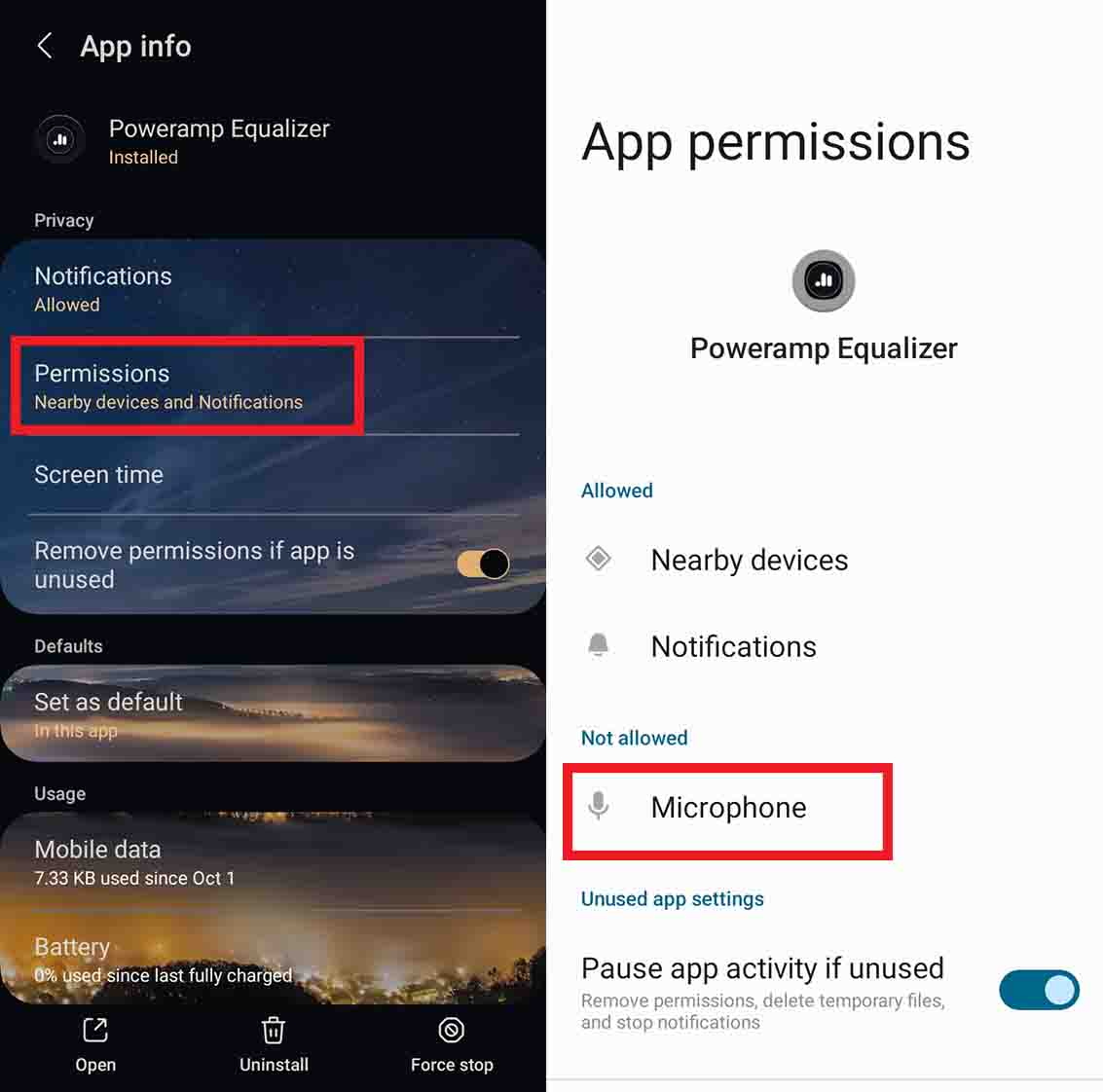
The most common reason for the Poweramp Equalizer not working is a lack of permissions. The app needs to “see” what other apps are doing to process their audio.
- Open Settings on your Android device.
- Go to Apps > See all apps and find Poweramp Equalizer.
- Tap on Permissions.
- Ensure that “Microphone” and “Nearby devices” permissions are granted. The microphone permission is essential as it allows the app to access the global audio output. It does not record you; it simply listens to the audio stream to apply effects.
- Restart the Poweramp Equalizer app and test it.
Method 2: Disable Battery Optimization
This is the most critical step for most users. If the OS puts the app to sleep, the equalizer will stop.
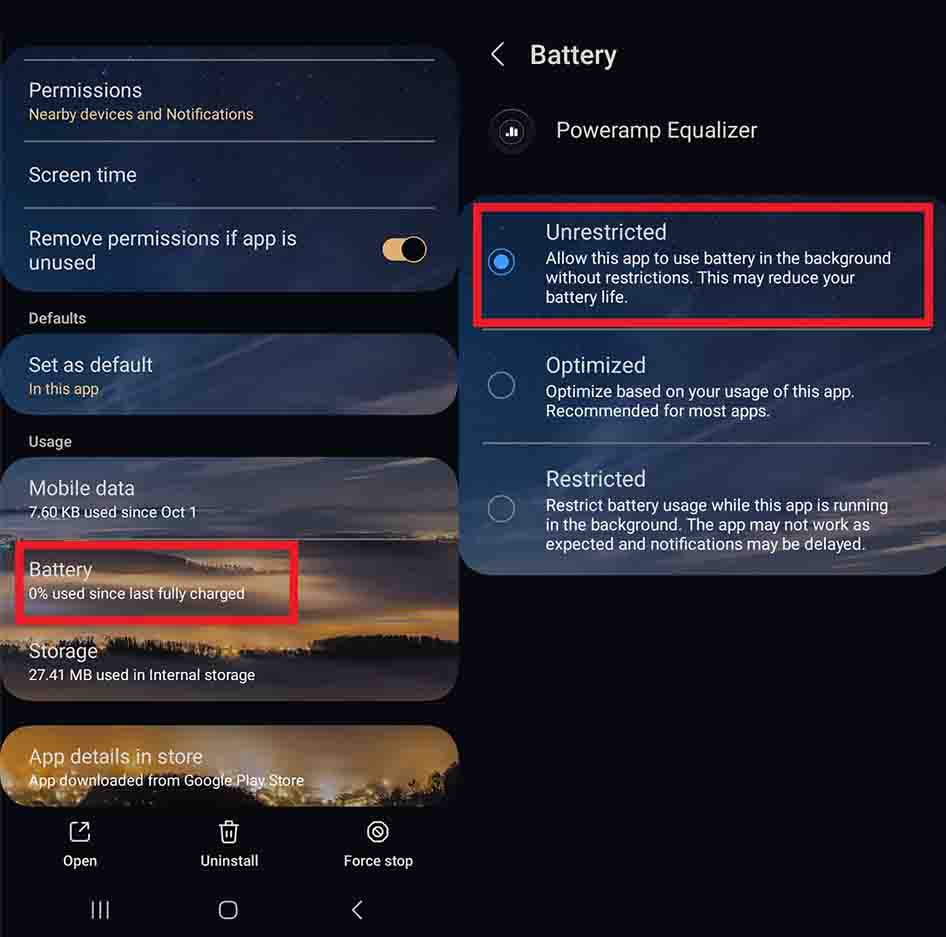
- Go to Settings > Apps > Poweramp Equalizer.
- Tap on Battery or App battery usage.
- Set it to “Unrestricted” or “Don’t optimize”. The wording may vary depending on your phone’s brand.
- Additionally, check your phone’s main battery settings for any “background app management” or “sleeping apps” lists and ensure Poweramp Equalizer is exempted.
Method 3: Correctly Configure "Known Players"
Poweramp Equalizer needs to be told which apps it should apply effects to.
- Open the Poweramp Equalizer app.
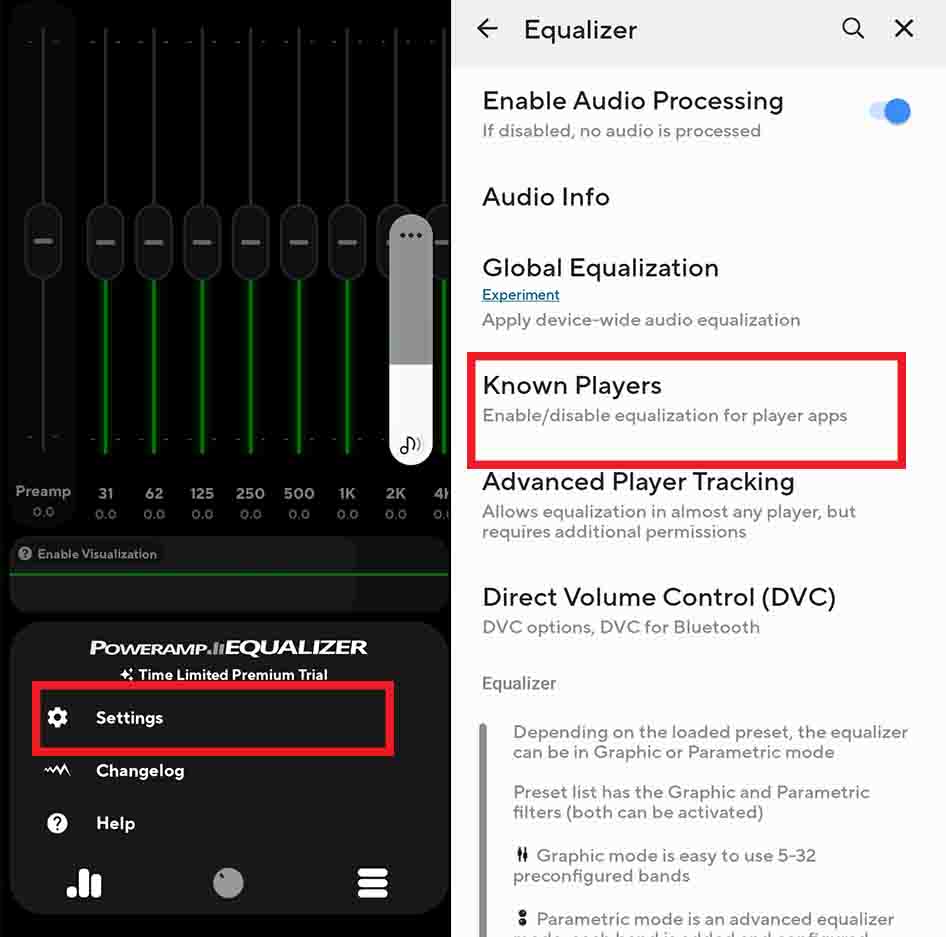
- Tap the three-dots menu and go to Settings.
- Select Known Players.
- A list of your installed apps will appear. Find your music or streaming apps (e.g., Spotify, Apple Music, YouTube Music) and turn the toggle ON for them.
- If an app isn’t listed, you can try to add it manually if the option is available.
Method 4: Identify and Disable Conflicting Audio Apps
Two equalizers can’t control the same audio stream. You must choose one.
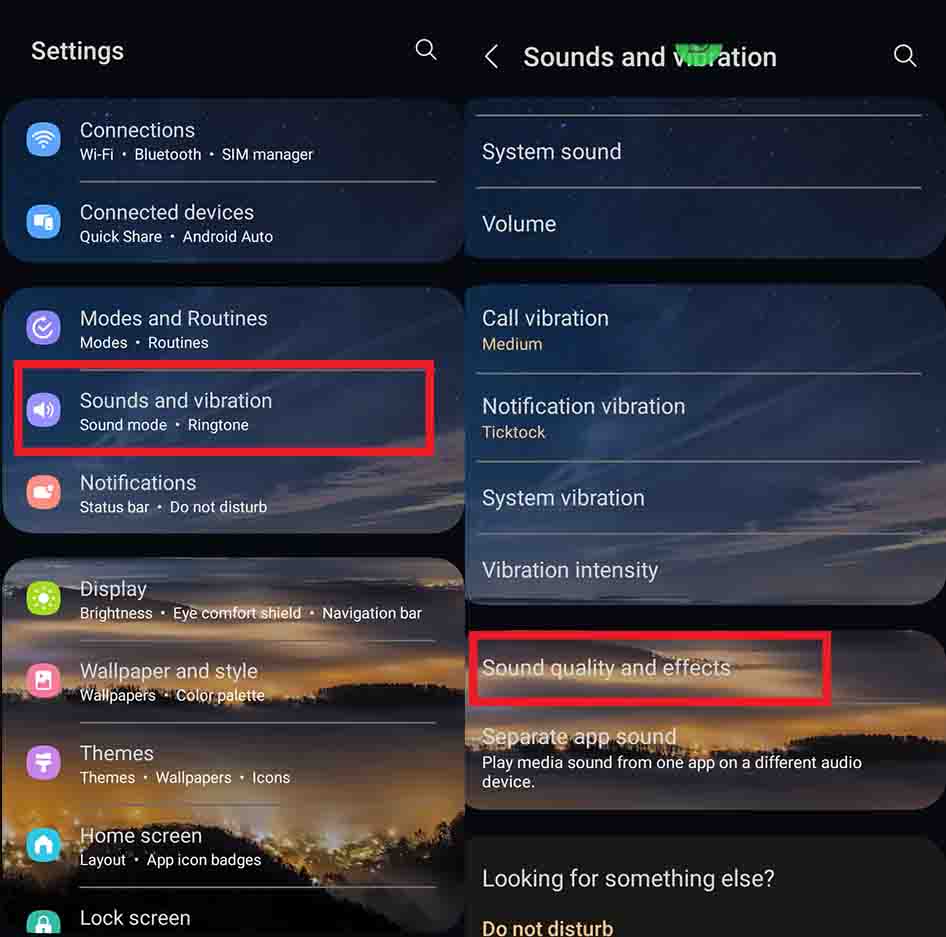
- Go to your phone’s main Settings > Sound & vibration.
- Look for settings like “Sound quality and effects,” “Dolby Atmos,” or “Audio effects.”
- Disable all system-level equalizers and sound enhancers.
- Also, uninstall any other third-party equalizer or audio mod apps you may have installed.
- Reboot your phone and test again.
Method 5: Clear the App's Cache
Sometimes, a corrupted cache file can cause unexpected behavior.
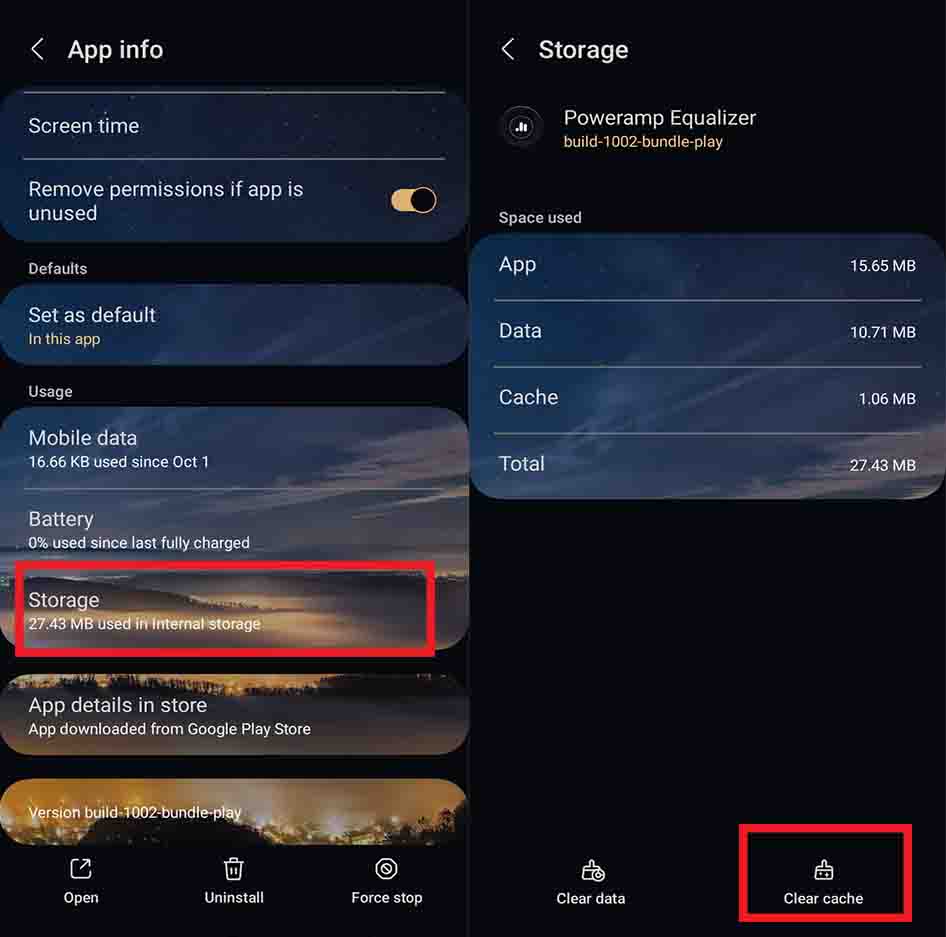
- Go to Settings > Apps > Poweramp Equalizer.
- Tap on Storage & cache.
- First, tap “Clear cache.” Test the app.
- If it still doesn’t work, you can return here and tap “Clear storage,” but be aware this will reset all your settings and presets.
Method 6: The "Fresh Start" Reinstallation
Uninstalling and reinstalling can resolve deeper issues.
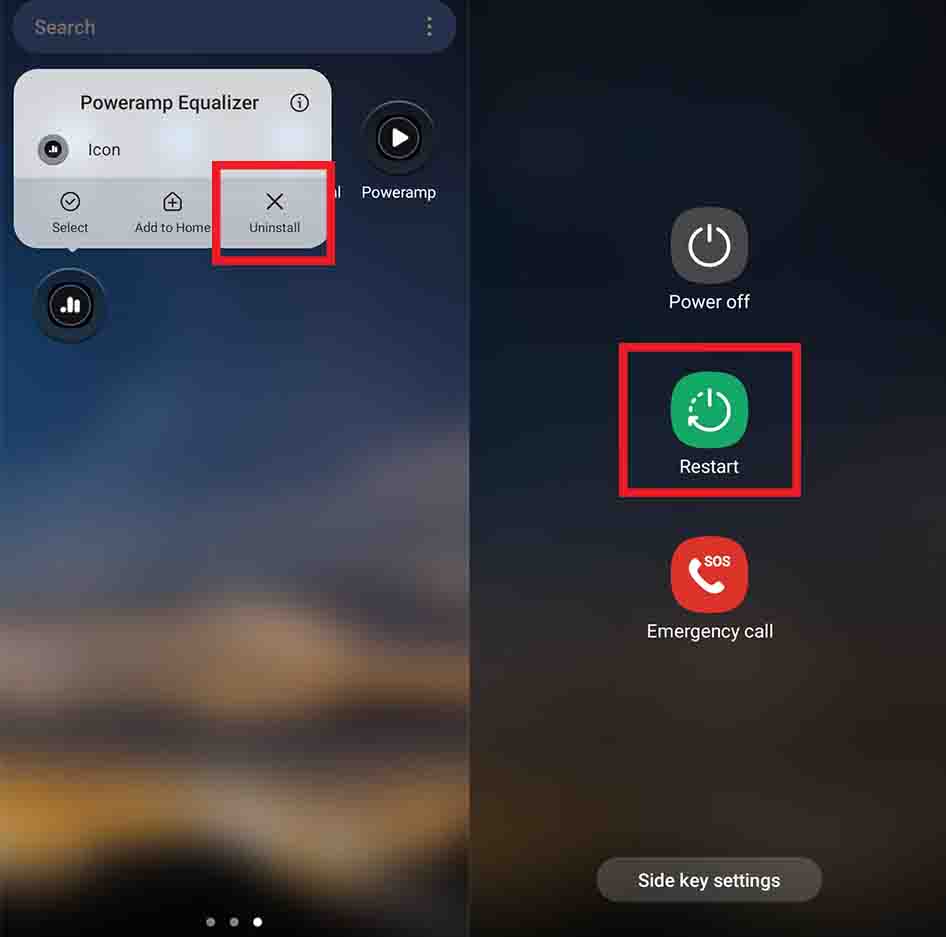
- Uninstall Poweramp Equalizer from your phone.
- Reboot your device. This is an important step that clears out any residual files.
- Reinstall the app from the Google Play Store.
- Carefully re-apply Methods 1, 2, and 3 to ensure permissions and settings are correct from the start.
Method 7 (Advanced): Grant DUMP Permission via ADB
This is an advanced solution, frequently mentioned on the official Poweramp forums as a definitive fix, especially for stubborn devices. It gives the app deeper system-level access to audio streams. You will need a computer for this.
Disclaimer: This process requires enabling Developer Options and using a command-line tool. Proceed with care.
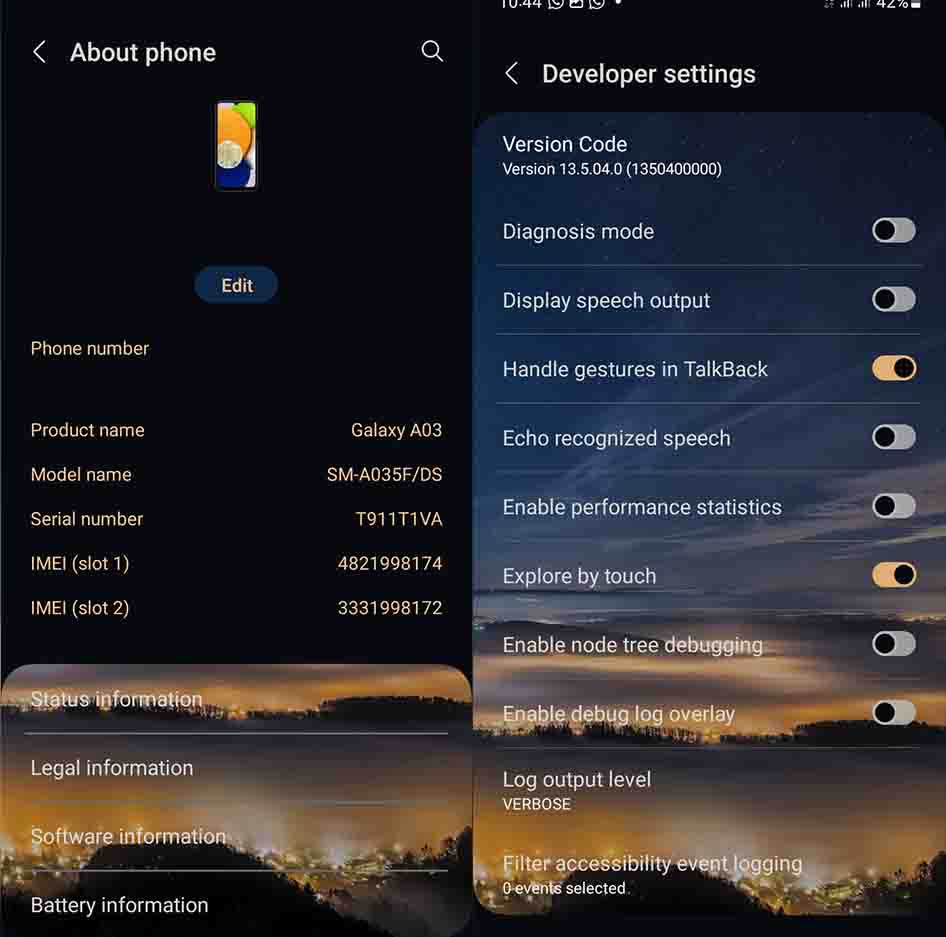
- On your phone: Go to Settings > About phone and tap on “Build number” 7 times to enable Developer Options.
- On your phone: Go to Settings > System > Developer options and enable “USB debugging.”
- On your computer: Download the Android SDK Platform Tools (which includes ADB) from the official Google developer website. Unzip the folder.
- Connect your phone to your computer via USB. On your phone, a prompt will appear asking to “Allow USB debugging.” Check the box and allow it.
- On your computer: Open a Command Prompt or Terminal window inside the unzipped platform-tools folder.
- Type adb devices and press Enter. You should see your device’s serial number, confirming the connection.
- Enter the following command exactly as written and press Enter: adb shell pm grant com.maxmpz.equalizer android.permission.DUMP
- If successful, there will be no “error” or “failure” message. You can now disconnect your phone. This permission persists even after reboots.
Method 8: For Poweramp Music Player Users
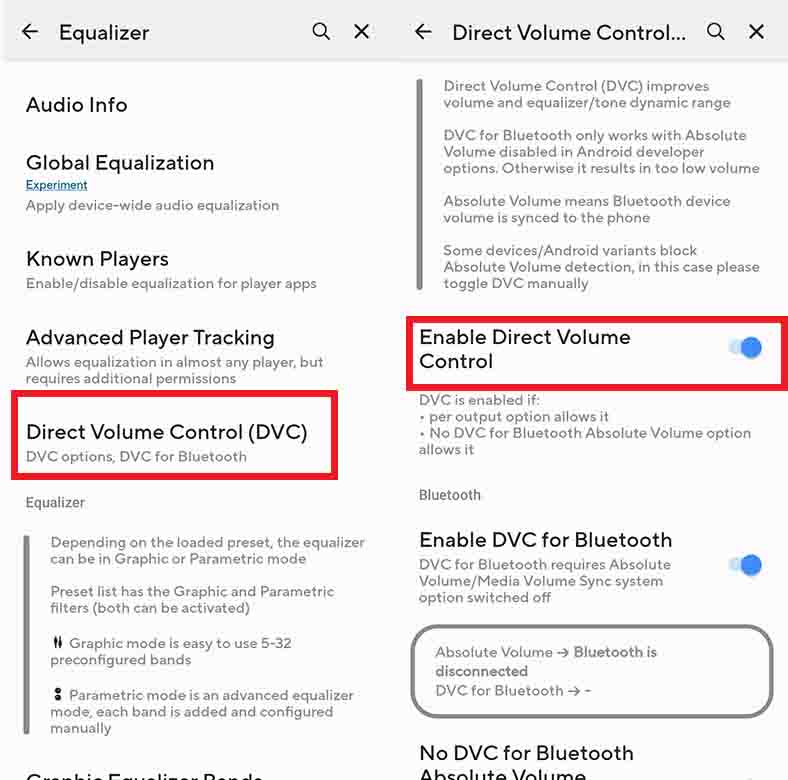
If you use the main Poweramp Music Player app alongside the Equalizer app, a setting called DVC (Direct Volume Control) can interfere. The Equalizer needs to be the final step in the audio chain.
- Open the main Poweramp Music Player app (not the Equalizer app).
- Go to Settings > Audio > Output.
- Select the output you are using (e.g., Hi-Res Output).
- Find the toggle for Direct Volume Control (DVC) and disable it. This allows the Equalizer app to properly process the audio from the main player.
Conclusion
Fixing the Poweramp Equalizer not working issue might seem complicated at first, but as you’ve seen, every problem has a clear solution , from basic permission tweaks to advanced ADB commands. Once fixed, your music comes alive again with the deep, powerful sound that made you love Poweramp in the first place. Reade more on reddit .
Now that your audio is back to perfection, share this guide with other music lovers who might be struggling too , and keep enjoying the sound the way it was meant to be heard.
Poweramp Equalizer Not Working Poweramp Equalizer Not Working Poweramp Equalizer Not Working Poweramp Equalizer Not Working Poweramp Equalizer Not Working Poweramp Equalizer Not Working
5/5 - (11 votes)


Great and thank you