


Updated: 29 July 2026 | Author: Editorial Team Author Profile
Are you wondering why BlackPlayer deleting music folders? The short answer is: BlackPlayer rarely deletes files intentionally. Instead, missing music folders are usually the result of strict Android storage permission changes (like Scoped Storage), corrupted SD cards, or Android Media Scanner database glitches.
When your files disappear, they are often just hidden or unreadable by the app. To prevent permanent music loss in 2026, users must correctly configure BlackPlayer’s library settings, grant proper file access, and manage .nomedia files effectively.
This guide explains exactly why your music folders seem to vanish, how to fix the library database, and safe troubleshooting steps to permanently protect your local Android music collection.
Learn more about BlackPlayer Music Player and discover its features, settings, and latest guides.
Explore BlackPlayer Music Player
Table of Contents
- 1 How to Fix Missing Music Folders in BlackPlayer
- 2 How to Secure Your Music Library in BlackPlayer
- 2.1 Solution 1 – The Golden Rule of Folder Structure
- 2.2 Solution 2 – Avoid the "Reset AudioLibrary" Option
- 2.3 Solution 3 – Pre-Flight Checklist for Maximum Safety
- 2.4 More articles you may find useful
- 2.5 BlackPlayer Failed to Load Track Error in 2026 | How to Fix?
- 2.6 How to Fix BlackPlayer Not Detecting Music Full Guide (2026)
- 2.7 How to Show Lyrics in BlackPlayer Complete Guide 2026
- 3 How to Recover Deleted Music Files (If the Bug Hit You)
- 4 Data Recovery in BlackPlayer: What Are Your Options?
- 5 Conclusion: Protecting Your BlackPlayer Library
How to Fix Missing Music Folders in BlackPlayer
If your music hasn’t been permanently deleted by the album art bug, it is likely just hidden due to configuration or permission errors. Follow these safe, step-by-step methods to restore your missing library:
1. Verify and Re-select Music Folders
Often, the app simply loses track of the correct directory after an Android update. You need to manually point BlackPlayer back to your files.
Open BlackPlayer and go to Settings.
Navigate to Metadata > BlackPlayer Library.
Tap on Select Folders (or Manually Select Folders).
Uncheck any incorrect folders, navigate to your actual music directory (e.g.,
Internal Storage/Music), check the box, and apply.

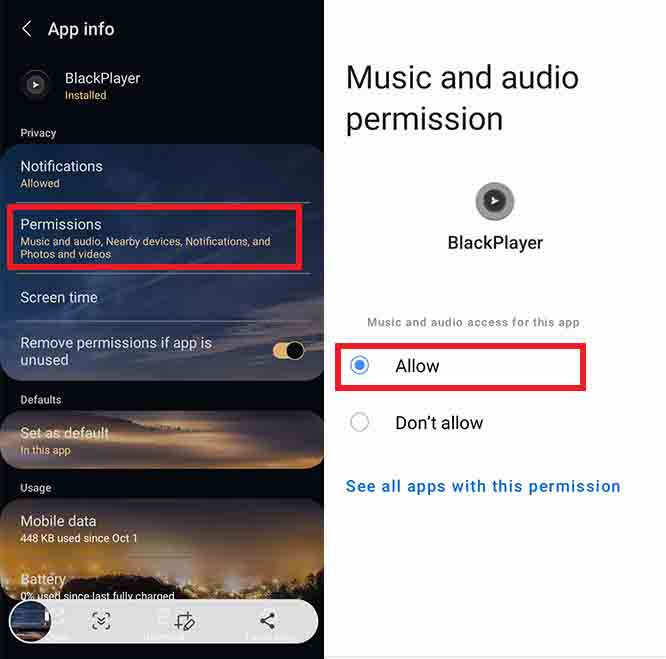
2. Grant Full Storage Permissions (Android 11+)
Modern Android versions use “Scoped Storage,” which strictly limits how apps access files. If BlackPlayer lacks full permission, your folders will appear empty.
Go to your Android phone’s Settings > Apps > BlackPlayer.
Tap on Permissions > Files and media (or Storage).
Ensure it is set to Allow management of all files (not just Allow access to media only).
3. Delete Hidden .nomedia Files
A .nomedia file is a blank system file that tells Android to hide all media in that specific folder from gallery and music apps. Sometimes, these files are generated by mistake.
Open your phone’s default File Manager (e.g., Google Files).
Enable “Show hidden files” in the settings.
Navigate to your music folder. If you see a file named
.nomedia, delete it immediately.
4. Reload the Audio Tracker
Once you have fixed the permissions and folder paths, you need to force the app to rescan your device.
Go back to BlackPlayer Settings > Metadata > BlackPlayer Library.
Scroll down and tap Reload Audio Tracker (or Scan for Music). Let the process finish, and your missing folders should reappear.
How to Secure Your Music Library in BlackPlayer
Given the serious and persistent nature of this bug, the best course of action is not to rely on app updates, but to take immediate, proactive steps to secure your music library. The core principle is simple: your folder structure is your strongest line of defense.
Solution 1 – The Golden Rule of Folder Structure
The most effective way to prevent the catastrophic deletion bug is to never place music files in a root directory. This means ensuring that no song files (.mp3, .flac, .ogg, etc.) or album art images (.jpg, .png) are located directly within your primary music folder. All music must be organized into a nested folder hierarchy.
Recommended folder structure (validated by users):
Create a single, top-level music folder. For example:
/Storage/SD Card/Music/or/Internal Storage/Music/
This is your main library directory.Inside this folder, create dedicated subfolders for each artist:
/Music/Artist Name/Inside each artist folder, create a subfolder for each album:
/Music/Artist Name/Album Title/Place all song files and album art (named
cover.jpgor similar) within the album folder.
This structure ensures that even if the app encounters a bug, it cannot delete your entire library at once.
| Unsafe (❌) Folder Structure | Safe (✅) Folder Structure | Rationale for Failure |
|---|---|---|
| /Music/Song A.mp3 | /Music/Artist Name/Album Title/Song A.mp3 | The app's logic may misinterpret the /Music/ directory as the only target for deletion when attempting a file-level operation. |
| /Music/Cover.jpg | /Music/Artist Name/Album Title/Cover.jpg | Placing album art in the root can trigger the bug, which then deletes the entire /Music/ folder and all its contents. |
| /Music/My-Mixed-Playlist/ | /Music/Playlists/My-Mixed-Playlist/ | Isolating mixed collections prevents the app from misinterpreting a playlist folder as a single-level album, reducing the risk of a bug-triggered wipe. |
← Scroll →
Solution 2 – Avoid the "Reset AudioLibrary" Option
Avoid the “Reset AudioLibrary“ option entirely. While intended for troubleshooting, this feature has been independently confirmed as a trigger for catastrophic deletion.
Safe alternative:
Use the “Scan For Music” option in the main track view by swiping down or tapping the title. This initiates a scan for new files without clearing the app database, avoiding data loss.
If a full reset is absolutely necessary, perform a full backup of your music library first.
Solution 3 – Pre-Flight Checklist for Maximum Safety
Use the following checklist to protect your collection:
Ensure all music and album art are inside nested folders (no files in root directories).
Avoid using “Reset AudioLibrary” unless a verified backup exists.
Regularly back up your library to external storage or cloud service.
Keep the app updated, but do not rely solely on updates to fix critical bugs.
Use the “Scan For Music” feature for routine updates.
Following these steps provides the highest level of protection against known BlackPlayer deletion bugs.
More articles you may find useful



How to Recover Deleted Music Files (If the Bug Hit You)
1. Check the System Trash (The First Hope)
While app-triggered deletions often bypass the system recycle bin, it is still your first mandatory check. Modern Android versions include an OS-level trash system.
Open your default file manager (like Samsung My Files or Google Files).
Navigate to the Trash or Recently Deleted folder (usually found in the left menu).
If your files are there, you have 30 days to restore them before they are permanently purged.
2. Verify Cloud Syncs and Backups
If you use cloud storage apps (Google Drive, OneDrive, or Dropbox) and have background syncing enabled for your media folders, your files might be safe in the cloud. Check your cloud accounts via a web browser immediately. If the deletion synced to the cloud, check the cloud provider’s internal “Trash” bin to restore them.
3. The Harsh Reality of Android Recovery Software
If your music was stored on the phone’s internal storage, third-party recovery apps (like DiskDigger) or PC recovery software will likely fail. Due to Android’s modern File-Based Encryption (FBE) and Scoped Storage rules, recovering permanently deleted files from internal memory is virtually impossible without root access.
Data Recovery in BlackPlayer: What Are Your Options?
If your files are not in the trash bin or a cloud backup, your options are limited but not completely gone. The most critical principle of data recovery is to stop using the device immediately. Any new data written to the storage could overwrite the space that your deleted files previously occupied, making them unrecoverable. The best strategy is to remove the SD card (if applicable) or place the phone in airplane mode and avoid saving any new data.
Next, you may consider using a third-party data recovery software for Android. These programs are designed to scan the physical memory of a device or SD card for files that are no longer visible to the operating system. The chances of a successful recovery are significantly higher if your device’s storage or SD card is not encrypted, and if you act as quickly as possible before any new data is written. While such software can be effective, it is important to be realistic about the outcomes; recovery is not guaranteed, and the best defense against data loss is always a preventative backup strategy.
Conclusion: Protecting Your BlackPlayer Library
To sum up, while BlackPlayer remains one of the most powerful and customizable audio players on Android, its interaction with modern storage permissions is often the real reason behind the terrifying BlackPlayer deleting music folder issue. Fortunately, as we have explored, simply granting the correct folder access, reloading the audio tracker, or deleting rogue .nomedia files will solve the problem for the vast majority of users.
However, the notorious album art bug serves as a harsh reality check. To permanently protect your local music library from unexpected data loss, always follow these two golden rules:
Organize strictly by folders: Never dump all your tracks into a single root directory. Always use the Artist > Album folder structure.
Maintain offline backups: Your Android phone should never be the only place your 50 GB music collection lives. Keep a mirrored backup on a PC or an external hard drive.
Over to You! Have you experienced the disappearing folder issue, or were you unlucky enough to be hit by the album art deletion bug? Did the permission fix work for you, or did you have to use recovery software? Let us know your experience in the comments below!
If you found this troubleshooting guide helpful, please share it with other Android audiophiles to help them save their precious music collections from permanent loss.
5/5 - (11 votes)


Leave A Reply