Updated: 29 July 2026 | Author: Editorial Team Author Profile
Phonk combines heavy bass, punchy kick drums, distorted 808s, and vintage Memphis rap samples, making EQ adjustments essential for balanced playback. BlackPlayer’s built-in equalizer lets you fine-tune low frequencies, mids, and treble to improve bass impact without overwhelming vocals or reducing detail.
In this guide, you’ll learn seven practical EQ adjustments for Phonk music, how each frequency affects the sound, and how to get deeper bass while maintaining clarity on headphones, earbuds, and car audio systems.
Learn more about BlackPlayer Music Player and discover its features, settings, and latest guides.
Use these Phonk EQ settings in BlackPlayer to balance weight and crispness in any Phonk beat.
Why EQ Matters for Phonk
Phonk’s aesthetic hinges on heavy low frequencies interacting with lo-fi artifacts tape hiss, vinyl crackle, chopped soul samples. A generic “bass boost” kills the nuance, smearing snares and masking reverb tails. A targeted EQ preserves that explosive low end while carving space for mid and high-frequency details.
Proper Phonk EQ settings let each element breathe. The kick and sub-bass occupy their own bandwidth; snares and hats cut through a controlled midrange; air and sparkle appear without harshness. The result is a three-dimensional mix that feels both warm and precise.
EQ in BlackPlayer is simple yet powerful: seven bands plus filters let you shape every part of the spectrum. With the right curve, you maintain depth and presence across all playback systems—from earbuds in the subway to studio monitors.
Understanding each frequency’s musical function ensures changes aren’t guesswork. In the next section, we unpack the top seven BlackPlayer EQ adjustments tailored for Phonk bass boost and clarity.
Top 7 BlackPlayer Phonk EQ Adjustments for Bass & Clarity
Below is a compact table summarizing the ideal frequency tweaks. We’ll then explore why each matters and how to refine them.
Frequency
Adjustment
Purpose
30 Hz
High-pass
Eliminate sub-rumble
60 Hz
+2 dB
Deep, punchy bass
230 Hz
+3 dB
Kick/snare clarity
500 Hz
–1 dB
Muddiness reduction
910 Hz
–2 dB
Open up midrange
4 kHz
0 dB
Preserve natural tone
14 kHz
+2 dB
Air and sparkle
High-pass Filter at 30 Hz: Filtering everything below 30 Hz removes inaudible sub-rumble that wastes headroom and muddy’s your mix’s bottom. Most speakers can’t reproduce below 30 Hz, so cutting here tightens bass without audible loss. Use a gentle 12 dB/oct slope in BlackPlayer’s filter section.
Boost 60 Hz by +2 dB: This band lives in the sweet spot of sub-kick weight. A modest +2 dB lift at 60 Hz gives your 808s and low kicks more presence without turning boomy. Listen for resonance; if your room or headphones exaggerate low end, dial back to +1 dB.
Boost 230 Hz by +3 dB: At 230 Hz you shape the “thud” of your kick and the body of your snares. Phonk relies on a punchy mid-bass to drive rhythm. A +3 dB bump emphasizes attack, making drums pop through tape saturation and lo-fi noise floor.
Cut 500 Hz by –1 dB: This mid-range region often accumulates muddiness from samples and reverb tails. A subtle –1 dB cut at 500 Hz clears space for vocals or lead samples. Be cautious—excessive cut makes your mix sound thin.
Cut 910 Hz by –2 dB: Around 800–1000 Hz is where boxiness lives. Phonk’s chopped melodies can get cluttered here. Reducing 910 Hz by –2 dB opens the midrange and improves overall clarity, letting hats and snares cut without harshness.
Leave 4 kHz Flat: The 4 kHz area handles presence and sibilance. Leaving it untouched preserves the natural tonal balance of vinyl crackle and vocal chops. If you find harshness, experiment with a very narrow –0.5 dB dip, but zero is a solid default.
7. Boost 14 kHz by +2 dB: High-end sparkle adds that “air” on top of dusty loops. A +2 dB boost around 14 kHz lifts hi-hats and tape hiss just enough to give dimension. Avoid wide boosts—keep the Q narrow to prevent hiss from dominating.
Step-by-Step BlackPlayer Equalizer Tutorial for Beginners
🎵 Open BlackPlayer and go to the main screen Tap the three horizontal lines (☰) or swipe from the left edge to reveal the menu. This is where all your settings live.
🎵 Find and select “Equalizer” Scroll down the menu until you see “Equalizer.” Tap it to enter the EQ panel—this is your sonic control center.
🎵 Enable the 7-band EQ At the top of the EQ screen, flip the switch to “On.” You’ll see seven sliders labeled with frequencies (30 Hz up to 14 kHz).
🎵 Apply a high-pass filter at 30 Hz Tap the “Filter” icon (usually a slope) and set the cutoff to 30 Hz with a gentle slope. This removes inaudible sub-rumble and cleans up your bass.
🎵 Adjust each frequency band • 60 Hz: Slide up to +2 dB for deeper bass punch • 230 Hz: Slide up to +3 dB to make kicks and snares pop • 500 Hz: Slide down to –1 dB to clear midrange muddiness • 910 Hz: Slide down to –2 dB for a more open, clear midrange • 4 kHz: Leave the slider at 0 dB to preserve natural presence • 14 kHz: Slide up to +2 dB for airy, sparkling highs
🎵 Save your custom preset Tap the “Save” icon or the three-dot menu and choose “Save Preset.” Name it “Phonk Bass & Clarity” so you can recall it anytime.
🎵 Test and fine-tune by ear Play a Phonk track you know well. Listen on your headphones, then on small speakers. If the bass feels too boomy, reduce 60 Hz by 0.5 dB. If the highs hurt your ears, lower 14 kHz by 0.5 dB. Adjust slowly until it feels just right.
Case Study: “BlackPlayer Randomly Stops Playing” Issue
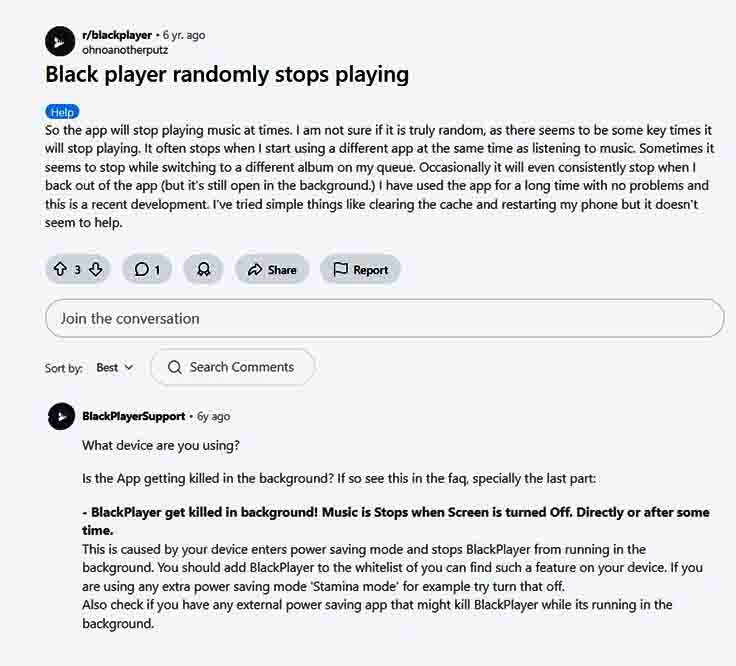
User in Reddit said: “So the app will stop playing music at times. I am not sure if it is truly random, as there seems to be some key times it will stop playing. It often stops when I start using a different app at the same time as listening to music. Sometimes it seems to stop while switching to a different album on my queue. Occasionally it will even consistently stop when I back out of the app (but it’s still open in the background.)”
Answer: In this real Reddit report, a user describes how BlackPlayer unexpectedly stops playback when they switch to another app, change albums in their queue, or even back out to the home screen while the app remains open in the background.
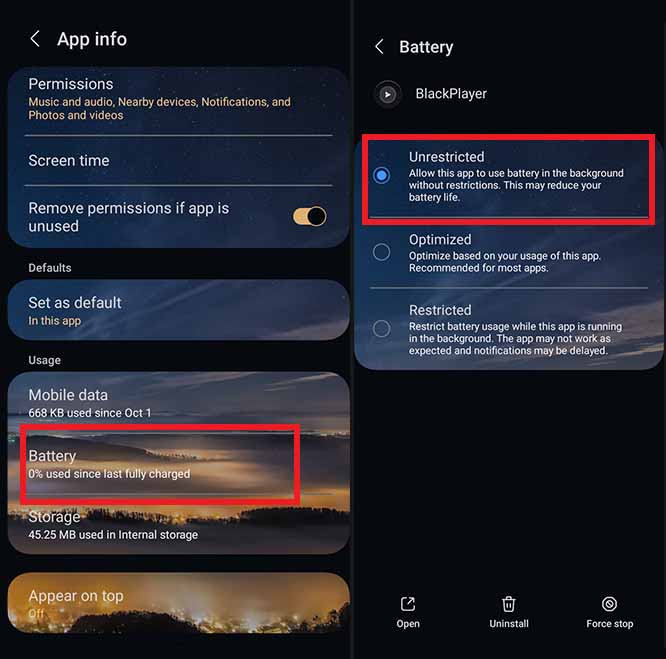
What this illustrates is Android’s aggressive battery and background-app management cutting off BlackPlayer’s audio service. To address it:
Whitelist BlackPlayer in Settings → Apps → BlackPlayer → Battery → “Unrestricted” or “Not optimized.”
In BlackPlayer settings, disable “Pause playback on focus loss.”
Update to the latest version to pick up any background-playback fixes.
Test again by switching apps and locking the screen to confirm continuous audio.
By including this case study, readers will recognize a common pain point and know exactly how to resolve it.
Advanced Tips and Common Pitfalls
Use a spectral analyzer alongside BlackPlayer Pair BlackPlayer with a free Android app like Spectroid. Play your Phonk loop and watch real-time peaks. Identify if your 60 Hz or 14 kHz boosts are creating unwanted resonances, then dial them back by 0.5 dB steps until the graph flattens where you need clarity.
Set precise Q-values for surgical cuts and boosts In BlackPlayer, pinch the band slider to adjust Q (bandwidth). For bass boosts (60 Hz–230 Hz), use a wider Q of ~1.2 so the low end feels natural. For midrange cuts (500 Hz–910 Hz), tighten Q to ~2.5 to remove muddiness without draining warmth from surrounding frequencies.
Maintain constant playback level when toggling BlackPlayer Phonk EQ Before you tweak, note your volume position. When you bypass the EQ, return to that exact slider level. This avoids the “loudness bias” where louder always sounds better. A/B every change at the same loudness to judge tonal balance, not volume.
Reference multiple Phonk tracks in different genres Load three Phonk tracks—classic Memphis-style, modern-wave surf-lo-fi, and vapor-trap hybrids—and switch your EQ on/off. Listen for how your settings translate across production styles. Adjust the 230 Hz boost up or down (±1 dB) to suit each track’s drum tonality.
Compensate for headphone frequency response If you use consumer earbuds (e.g., Sony WH-1000XM5), add a slight cut of –1 dB at 3 kHz to counteract their common mids-harshness. Then re-evaluate your 4 kHz band—what sounded flat on studio cans may be fatiguing on small drivers.
Common Pitfalls
Over-boosting adjacent bands causes phase issues Pushing both 60 Hz and 230 Hz above +3 dB can lead to a muddy “bump” that collapses in larger systems. If you need more thump, try +2 dB at 60 Hz and only +1 dB at 230 Hz, or split the difference by widening the Q on 60 Hz instead.
Blind trust in visual feedback A smooth spectrum graph doesn’t guarantee a balanced mix. Always cross-check with your ears on multiple devices. What looks flat on Spectroid may still overwhelm car speakers or smartphone earbuds.
Ignoring source bitrate and noise floor Applying a +2 dB boost at 14 kHz on a 128 kbps MP3 will exaggerate hissing codecs. Stick to ≥192 kbps or lossless files when dialing in top-end clarity. If you must use low-rate streams, reduce the 14 kHz boost to +1 dB or skip it entirely.
Forgetting headroom and clipping Large boosts and cuts change your track’s peak level. After major EQ moves, monitor the output meter in BlackPlayer. If you see red, drop the global gain by 1–2 dB or internally reduce the loudest band until clipping disappears.
Skipping real-world tests Relying solely on headphones in a quiet room overlooks real-world playback. After finalizing your preset, play it on small Bluetooth speakers and car audio. Note any frequencies that bloom or disappear, then adjust your preset accordingly.
Actionable Takeaways (Conclusion)
Apply a 30 Hz high-pass filter to remove inaudible rumble.
Boost 60 Hz and 230 Hz for impactful low end and drum punch.
Cut 500 Hz and 910 Hz to clear midrange muddiness.
Keep 4 kHz flat to preserve natural tone and prevent harshness.
Add +2 dB at 14 kHz for airy shimmer.
Test on both headphones and speakers—adjust ±0.5 dB by ear.
Save your preset in BlackPlayer as “Phonk Bass & Clarity” for repeatable results.
Implement these steps today and refine based on your room and gear. Your BlackPlayer Phonk EQ mixes will instantly gain depth, punch, and detail.


 Use a spectral analyzer alongside BlackPlayer Pair BlackPlayer with a free Android app like Spectroid. Play your Phonk loop and watch real-time peaks. Identify if your 60 Hz or 14 kHz boosts are creating unwanted resonances, then dial them back by 0.5 dB steps until the graph flattens where you need clarity.
 Over-boosting adjacent bands causes phase issues Pushing both 60 Hz and 230 Hz above +3 dB can lead to a muddy “bump” that collapses in larger systems. If you need more thump, try +2 dB at 60 Hz and only +1 dB at 230 Hz, or split the difference by widening the Q on 60 Hz instead.

Leave A Reply